Introduction:
The reports for any data exports can be seen at the report management level. All reports are displayed on the start page and can also be viewed there.
Example:
Homepage
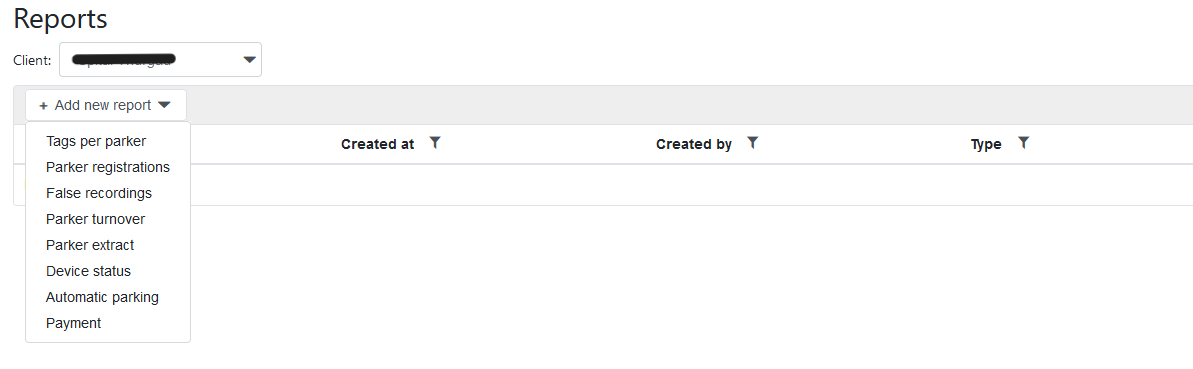
Abbildung 30: Reports Homepage
If data is to be exported, a new report must first be created. It is possible to create reports for all the topics shown above. The action for creating is always the same and can apply to all reports in the example below. For each report, you can select the time window from which you want to extract the data. The only thing that can change in the report options is the top line, i.e. the search criteria for the data to be exported. In the example below, this would be the start and end dates of the registrations and the type of registration. For "Tags per Parker", the company, the parker (name) or the search for licence plate or tag ID are possible as input factors.
Create report
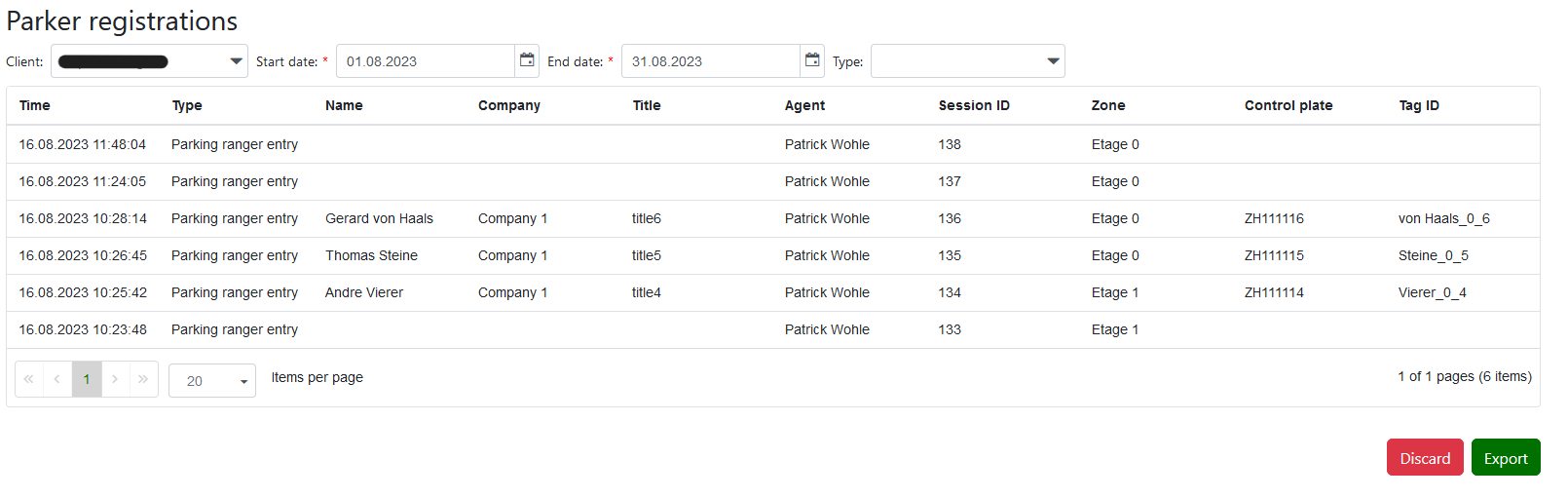
Abbildung 31: Create Report Example
As mentioned above, you can filter by data, which can change depending on the report. Once you have set all the filters you want, all you have to do is click on Export. Then a window appears in which you are asked whether you want to set the duration of a report to permanent or temporary and whether you want a CSV or a PDF file.
The "Discard" button takes you back to the start page of the reports.