Introduction
The administration of the parkers, i.e. the employees of a company, can only be carried out by the administrator. In the case of a larger number of parkers, the persons can also be read in by the system in the background and entered automatically.
This saves a long and tiring entry of each individual parker.
Example:
Home page:
The overview page is the same as in the user administration. New parkers can be added at the top left and subsequently edited. The link symbol on the far right under each user indicates that the added parkers have been linked to an existing user (explanation further down in the chapter). This link can be deleted by clicking on the button or via the editing page. Columns that are immediately visible on the screen can be selected or deselected on the far right. These can also be filtered using the funnel symbols next to the respective column overviews. Next to the “Add new parker” button, there is also the option to execute certain functions for all parkers selected in the list.
The following functions can be executed:
•Add park subscription set
•Add park subscribtion
•Cancel park subscription(s)
•Adjust park subscription
•Deactivate parker
•Activate parker
•Disconnect Parker from user
•Invite parker
•Replace park subscription
•Recalculate parking sessions

Abbildung 13: Example of parking management
Add / edit parker:
The window that appears for adding or editing parkers is the same as in the previous editing windows. The following data can be entered in the window:
•First Name and surname of the parker
•The internal identification in the company (four-letter-code etc.)
•For the group, you can select whether the added parker is an employee or a guest. "Undefined" is also possible.
•"User-defined 1" and "User-defined 2" can be individually defined with details such as location or department of the employee. This serves to search for specific employees more quickly and precisely.
•The relevant company and cost centre to which the employee is attached.
•The employee's working title within the company.
•The employee's full home address.
•Email and mobile phone number and/or home phone number.
•The field "Payroll" defines whether the parker should appear in the company payroll or not.
•The indication of the workplace serv es to identify and search for the person more quickly.
•The employee's employment in the compnay as a percentage for cost accounting in the tariff and subscription administration.
•Whether the employee is currently active or inactive. This happens automatically in the background with the use of AIM. As soon as the employee is no longer working for the company, the field is set to inactive.
•The currency with which the parking costs are to be settled.
•The personal email adress can be entered under "Connected user". Each parker can be connected to a user. The user (person) thus automatically acts as the parker (employee) and accepts his or her parking conditions.
• Tag: Tags associated with the parker can be added and/or edited in the middle section. Tags can be either UHF or QR codes, which are attached to the windscreen or rear window of the vehicle. Another option is to add a specific licence plate of the vehicle as a tag.
•Parking subscription: The parker can also be assigned one or more parking subscriptions.
•Custom fields: Additional fields can be defined as required for even more precise definitions and identifications of the parkers.
•Private address: For more information and better assignability of each parker, the private address of a parker can be added. It is required for the use of blacklists and blacklist areas.
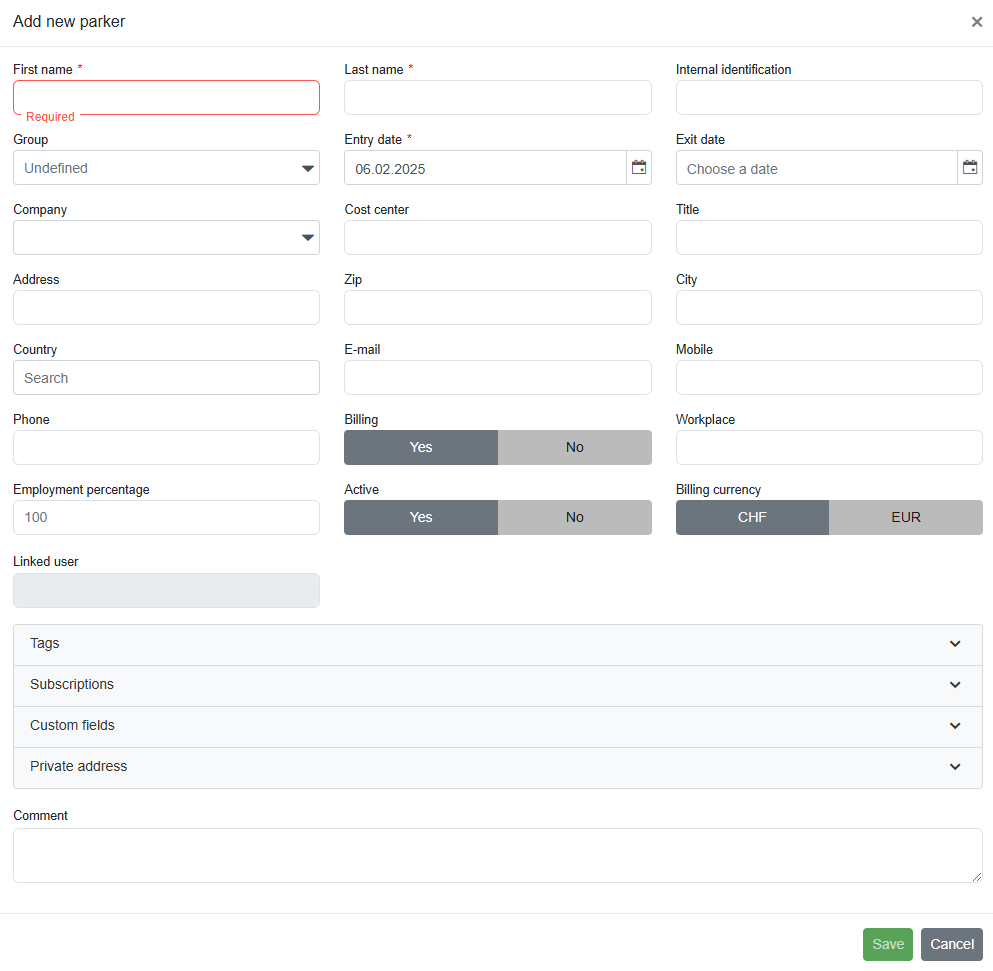
Abbildung 13: Example add/edit parker
Add / edit tags:
The editing page as well as the page for adding tags is the same. The only difference is that when editing an already existing tag, you can still select whether the tag should be set to active or inactive.
The following information can be added/edited:
•The identification code of the UHF tag can either be entered manually or read in directly using the right button and a table reader. However, and identification code is no mandatory, as it is not necessary to use a HUF reader to assign a tag to an employee.
•The customer identification and the tag type are already predefined by the system and cannot be changed manually on the tag management page. They are also used for information and control purposes only.
•If a QR code has been used to identify the parker instead of a UHF tag, this must also be read in.
•The country in which the vehicle is registered is mandatory.
•Optionally, the type of vehicle (you can choose between car, motorcycle or truck/tractor), the license plate number of the vehicle and a description of the vehicle can be specified.
•If a tag has a defect, this must be indicated here.
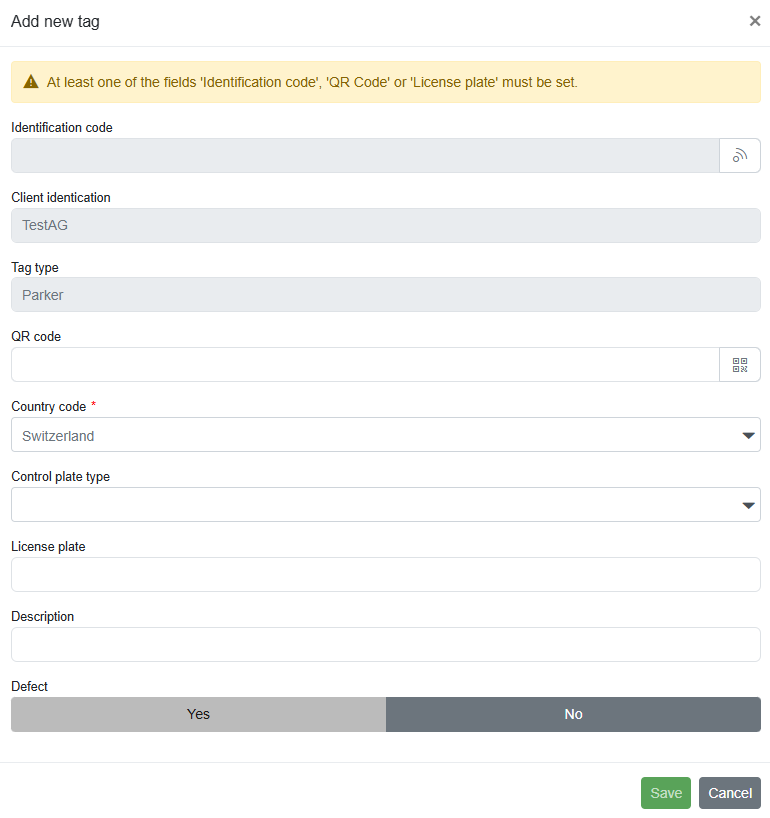
Abbildung 13: Example add/edit tag
Add / edit parking subscription:
Parking configurations can be assigned to individual parkers. One or more parking configurations can be assigned to a single parker, e.g. using a subscription set. Here too, there is an additional point on the editing page where you can select whether an assigned parking configuration should be active or inactive. As soon as an employee is entered in the background by the system as “no longer working here”, this entry is automatically set to “inactive”.
Important things to note when assigning a configuration to a parker:
•The configuration must be set to “Assignable” and “Active”
•The type of configuration must match the type of Parker. E.g. a standard configuration can only be assigned to a parker and not to a third-party parker.
The following information can be provided:
•A parking subscription can be selected using a drop-down menu. Available are those subscriptions that have been set as "assignable" in the parking subscription administration.
•It can be selected whether a parking subscription should be valid immediately or from a certain date. If it should not be valid immediately, the exact time with date and time can be entered manually.
•The same happens with the last item. You can select whether a parking subscription should always be valid (if so, manual entry is no longer possible) or whether it should run until a certain point in time (then manual entry of the exact end time of validity).
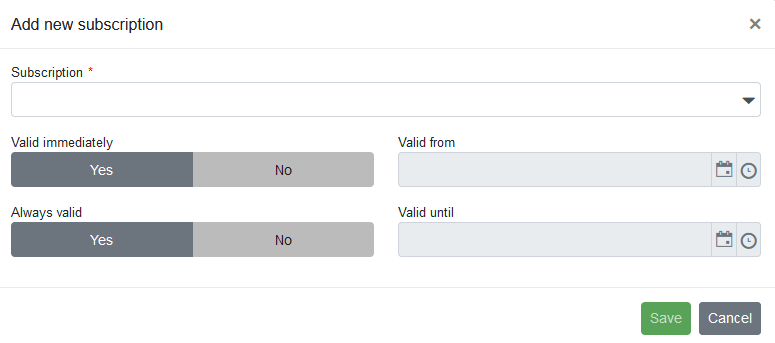
Abbildung 14: Example add/edit parking subscription for parker

Abbildung 14: Add subscription via set
If you want to add new configurations via Set, use the button on the right-hand side. Otherwise, it works in exactly the same way as adding a single configuration. The only difference is that you do not have to select a configuration, but a set.
Add custom fields:
If a more precise specification of the parkers is required, additional fields can be defined. These can then also be selected in the columns for more precise identification.
Any information can be entered.
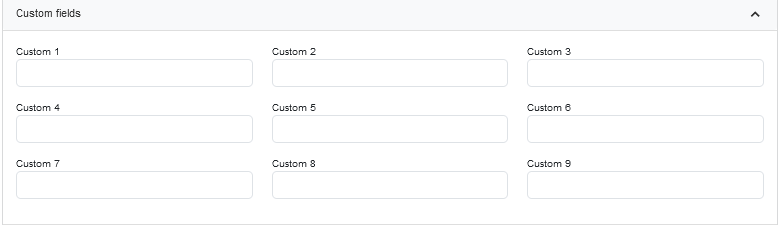
Abbildung 15: Adding of custom fields
Add private address:
For further information and assignability, privat addresses can be added for each parker. This is necessary for the use of blacklists and blacklist areas.
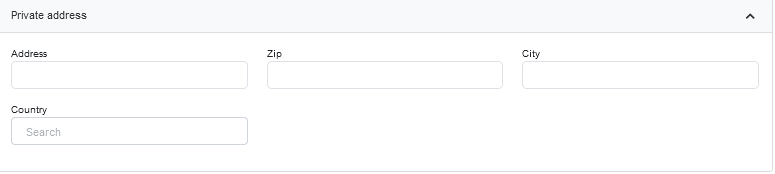
Abbildung 16: Adding of a private address