Introduction
User administration takes place in the background and is only accessible to company administrators. Additional customer administrators, customer users or parking attendants can be added and managed here.
Example:
Home page:
As Admin, web users can be added using the "+ Web" button. By web users the client administrator and client users are meant. A client administrator has the right to access all administrative processes and to change and edit them independently. A customer user, on the other hand, only has access to limited administrations such as reports, but cannot change any other configurations. Parking attendants can be added with the "+Parking attendant" button.
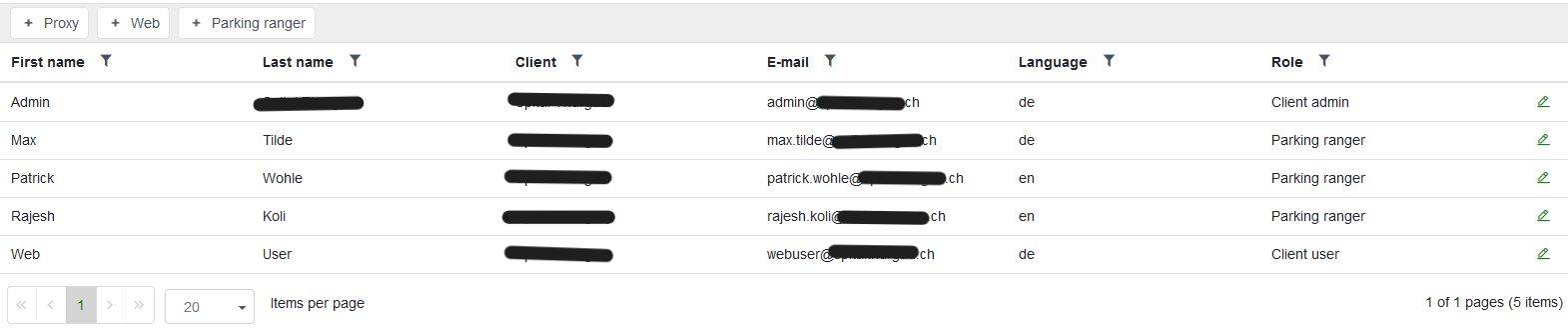
Abbildung 9: Example of "manage users"
Add web user:
To add a web user, the following information must be provided (see figure below):
•First name and surname including email must be entered.
•The customer, i.e. the selected company, already appears in the background.
•The language must also be selected.
•Telephone numbers are not mandatory.
•The type of user is the last entry to be made. AV administrator can be ignored here in this example, as this selecting will not occur with customers. Only customer administrator and customer user can be selected. The difference between the two is the number of rights.
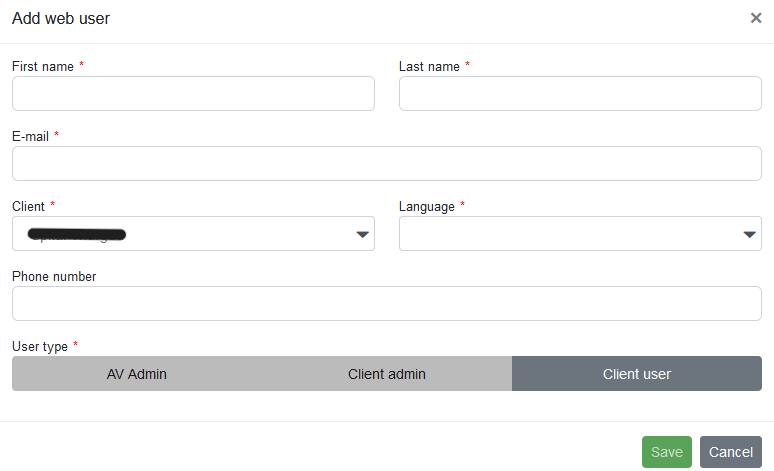
Abbildung 10: Example of adding a web user
Add parking ranger:
Adding parking attendants is similar to the process of web users in most parts. The only difference is that the phone number must be entered and no further selection of the type of user is necessary.
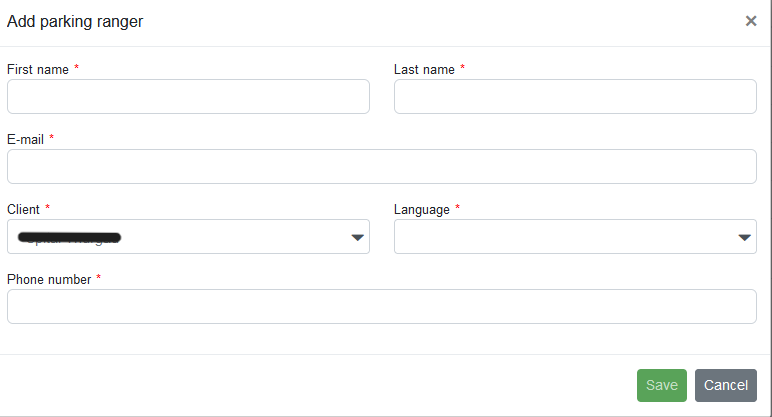
Abbildung 11: Example of adding parking attendants
Edit web user:
In order to edit the data of client administrators and client users alike, i.e. the so-called web users, the field that pops up is used as shown in Figure 13. In order for it to pop up, the green pencil sign on the right of the overview page must be clicked on. Here, information already given, such as name and email, can be changed or added. The person can also be set to active or inactive without having to delete the entire entry on the overview page (for future use, in case of illness or special leave).
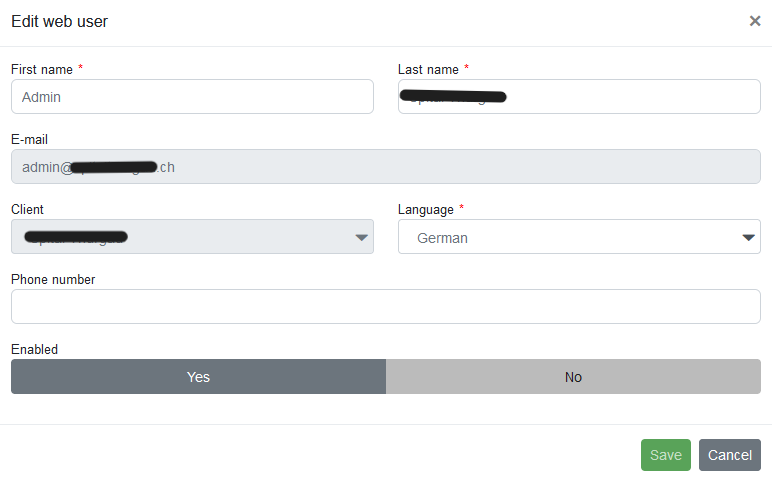
Abbildung 12: Example Editing Web Users
Edit park rangers:
The window for editing the parking attendants is more detailed. The upper part is the same as that of web user editing. However, the parking attendants have one important addition. Parking attendants need an access code with which they can log on to the mobile app in order to be able to approach their rounds as parking attendants. This code is sent to their mobile phone as an SMS or by email. A valid access code must be generated for this. You can select until when a code is to be valid. With the button "Regenerate code", the code is sent to the parking attendant so that he or she can log in with it.
Only with this entry does the mobile app expand its interface and enable the parking attendant functions. If a park ranger has a new mobile phone or if the old code has expired, he or she must request a new code from an administrator.
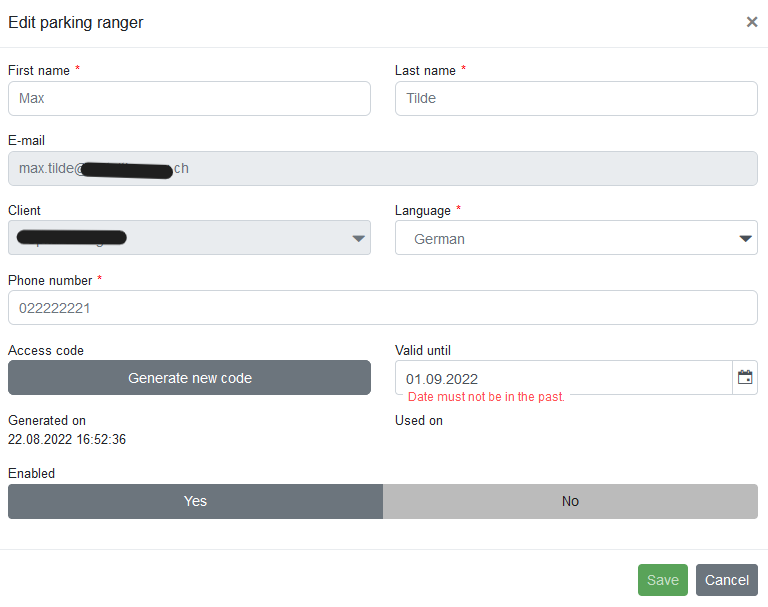
Abbildung 13: Example Editing Parking Attendant Data