Introduction:
As already mentioned, administration can be carried out in two ways. Depending on the type and size of a company, one or the other makes more sense.
For a company or another customer of a smaller size, for example, zone-based management is more likely to be used. If you have a few parking spaces that can be easily divided into zones, this type of management is advantageous. You simply divide all parking spaces into zones and can then assign tariffs and subscriptions to these zones. To be able to assign subscription, you must first create a subscription in the configuration-based part, which you can then assign in the zone-based part. More on this below.
If you have several sites and locations and, above all, countless different subscriptions and tariffs to manage, it makes sense to start with config-based management. Otherwise you could quickly lose track. If you create different tariffs for all zones, you should start with config-based management and first create subscriptions and assign tariffs to them. These can then be assigned to the zones more easily in the zone-based part. This makes it easier to maintain an overview and provides a more attractive display of the various options.
Symbollist:
Zonebased:
 :Add Zone
 : Add tariff
 : Add Device
 : Add QR-Coder
Configbased:
 :Add directory
 :Delete directory
 :Add subscription
:Add tariff
Zonebased administration:
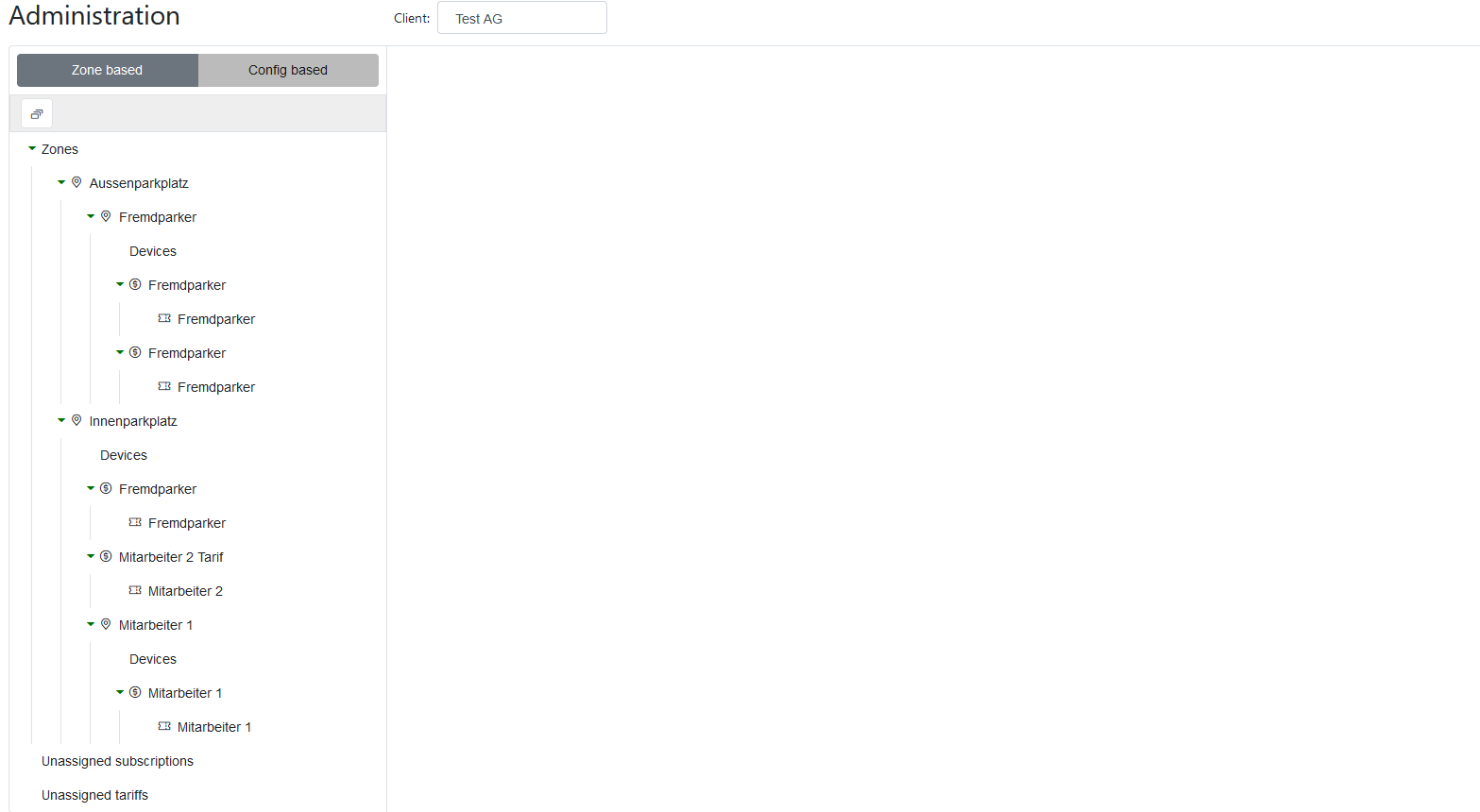
Abbildung 18: Overview zonebased administration
In the example above, two main zones have already been created, "Aussenparkplatz" and "Innenparkplatz". The outdoor parking space is only a grouping element, i.e. this parking space is divided into several sub-zones, in this case the "Fremdparker" zone. If a parking space is a grouping element, no further details can be entered.
The indoor parking lot has already been assigned two tariffs, "Fremdparker" and "Mitarbeiter 2 Tarif". These have corresponding subscriptions. It is important to note that these two tariffs can either be created directly in the zone-based administration with the "Add zone" button or in the configuration-based display. If they have been created in the config-based view, they appear here under "Unassigned tariffs" at the very bottom of the administration and can simply be dragged to the appropriate place. The same applies to subscriptions. These then appear under "Unassigned subscriptions". If the same tariff or subscription is also valid in one (or more) other zones, these can be copied to the corresponding zone using Ctrl + Drop.
"Mitarbeiter 1" is another zone that is located in the indoor parking lot and has again been assigned a tariff and a subscription. As soon as a parking space is no longer a grouping element, the "Devices" button automatically appears below it. If devices such as NFC readers or others are available, they can be read in there.
The indoor parking space itself is not a grouping element, so you have to define what this zone looks like. This looks as follows:
Most of the information is self-explanatory.
To ensure that a zone is clearly identifiable, it is marked with NFC tags or GPS coordinates. The desired option should be selected here; both options can also be selected. Depending on this, either the identification of the NFC tag and/or the GPS coordinates must be specified; to obtain the GPS coordinates, the location of the zone must be selected on the map. (To do this, the lock symbol must be open, then you can select an area with the - symbol.)
If third-party parkers are permitted, the corresponding third-party parker subscription must be selected. This must be created in advance.
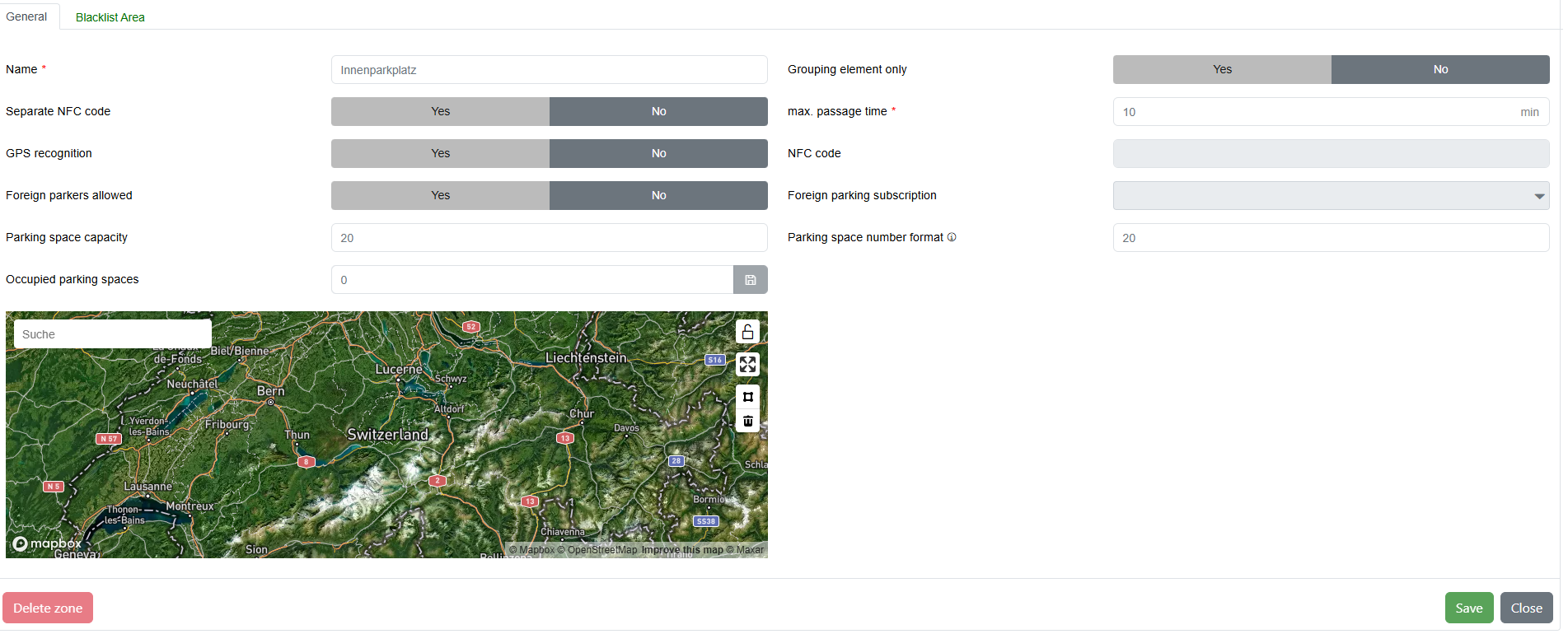
Abbildung 18: Define zone
A blacklist area can also be defined. An area can be marked on the map for this purpose. All parkers whose private address (GPS coordinates) is within the marked area (blacklist area) are no longer allowed to park in this zone. To do this, the private address of the parker in question must be added to the parking management system beforehand.
This option can be used, for example, to prevent residents from using the visitor parking spaces.
To enter or edit a blacklist area, the lock symbol on the right-hand side of the screen must first be opened. An area can then be drawn in using the -symbol.
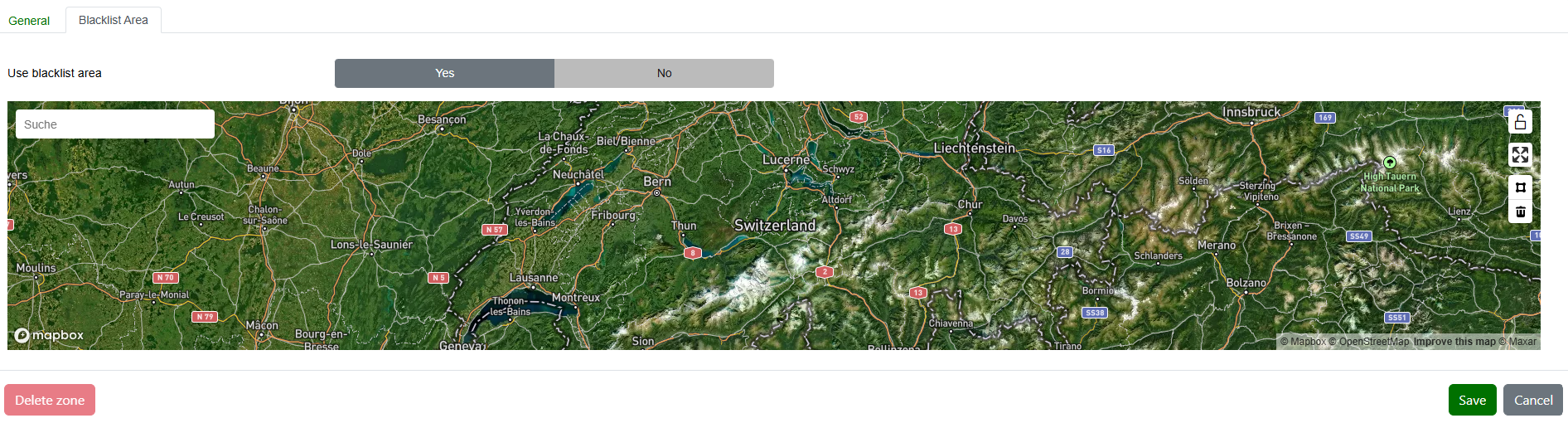
Abbildung 18: Define blacklist area
The tariff setting is as follows:
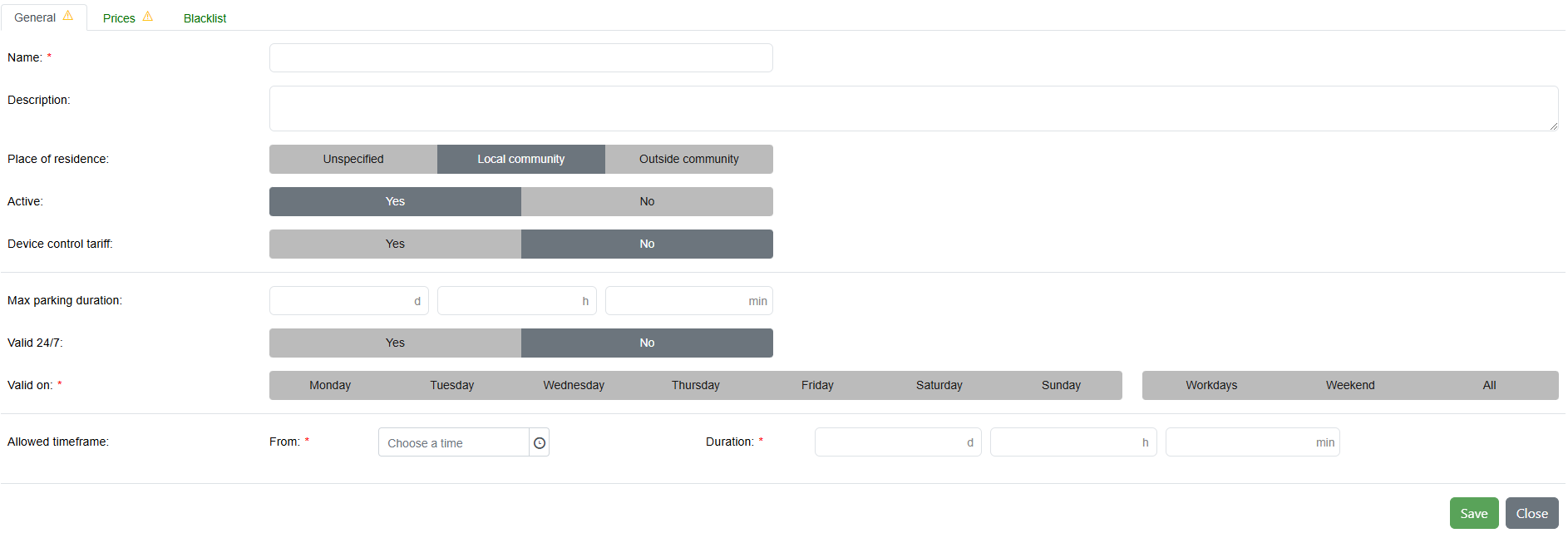
Abbildung 18: Tariff setting
As long as the subscription of a tariff is active, no details can be changed. The corresponding subscription must first be set to inactive. Before this can be done, the system must check in the background whether a parking process has already taken place. If this is not the case, it can be set to inactive, otherwise not. More on this in the last chapter. A name must be set for each tariff. The following information is also required:
•Place of residence: This refers to where the parkers come from. You can choose between "Location municipality" or "Outside" if they come from further away. If this does not matter, you can set this point to "not relevant".
•As explained in the "Definitions" section, a so-called device tariff can now also be set. To do this, set the "Device control" bar to "Yes". This removes the maximum parking time and only fixed prices can be set for the prices. If you want to let people control the devices and use the car parks free of charge, simply set the fixed price to "0".
•If you set "Valid 24/7" to "Yes", the toolbar for "Valid on" disappears, as does "Allowed timeframe". Otherwise, you can set exactly on which days and from when to when you are allowed to park at this location and for how long at a time.
Prices
There are three options for pricing the tariffs, as already mentioned. Linear price, fixed price and staggered price.
How exactly a linear price works is described in "Tariff design - linear price". The steps in minutes and the hourly price must be specified. And if a maximum price is available, this is also specified.

Abbildung 18: Linear price in zonebased administration
The fixed price is the simplest of the three price types. With this, only the total price per parking process needs to be specified.

Abbildung 18: Fixed price in zonebased administration
The tiered price is the most complicated of the three price structures, but is nevertheless easy to enter. Only the number of minutes, the price per hour and the steps in minutes are needed for each scale. Each scale must be entered individually. An explanation of the graduated price can be found here.
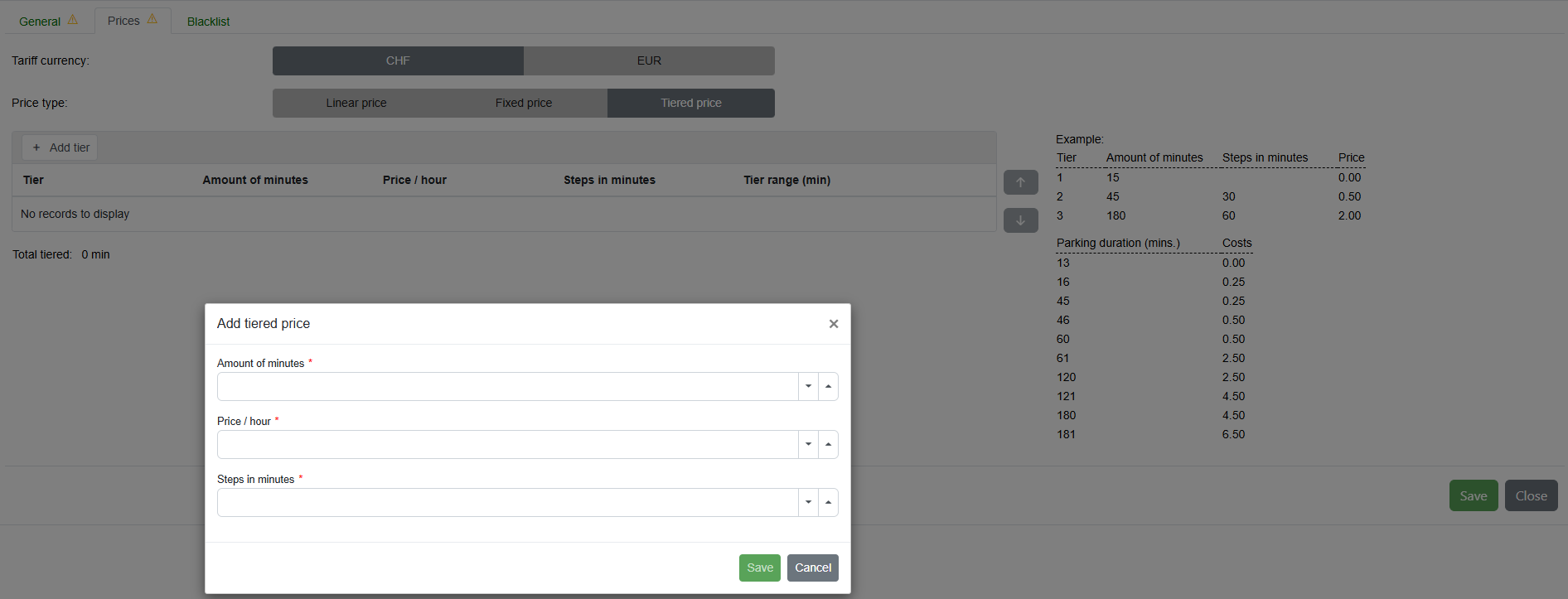
Abbildung 18: Tiered price example
Blacklist
In addition, certain users can be placed on the blacklist of a tariff. This means that the user concerned can no longer park with this tariff. If there is another tariff in the same zone, this will be used for the parking process. Provided the user is not also on their blacklist. If no tariffs are available to the user, no parking process can be completed.
In this way, unwanted parkers can be prevented from parking.
To do this, the vehicle's license plate number and the country in which it is registered must be specified. Optionally, the type of vehicle (car, motorcycle, truck, tractor) can be entered.
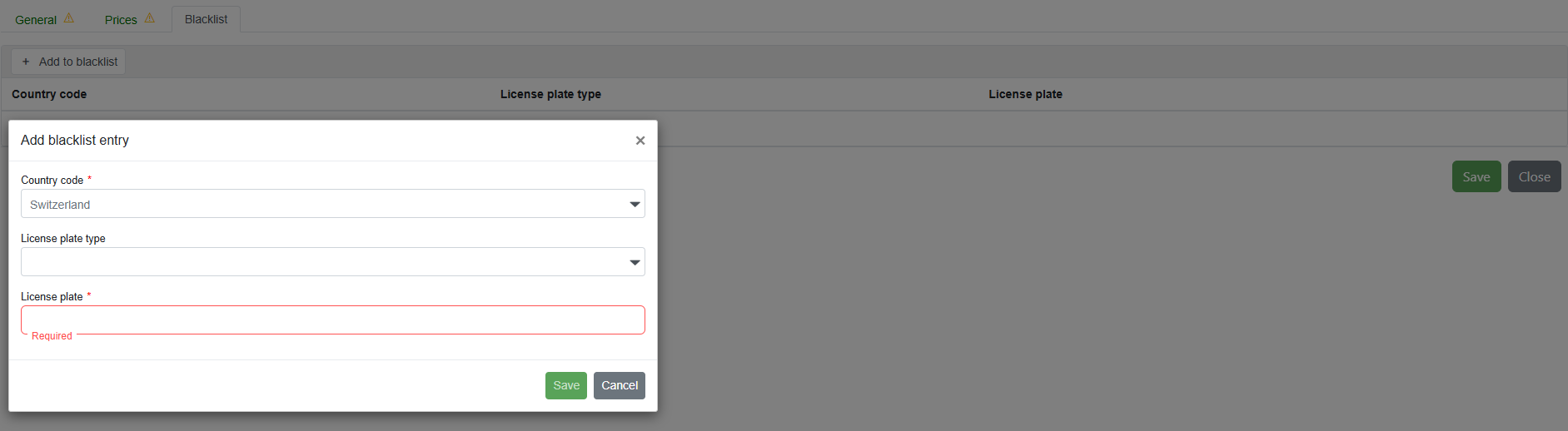
Abbildung 18: Add balcklist
A zone can also be identified using a QR code. To do this, click on the QR code symbol in the desired zone. This is generated as follows:
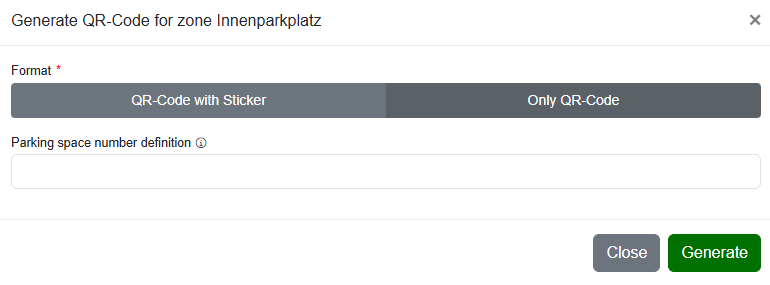
Abbildung 18: Generate QR-code for zone
The format must be selected to generate a QR code. Unlike "QR code only", "QR code with sticker" adds a sticker with the logo to the QR code.
In addition, the parking space numbers must be specified if several tariffs are assigned to the zone so that it is clear for which tariffs the QR code should apply. The numbers should be indicated as follows: e.g. 1a-10a, 15a-20a or 1-10, 12, 15-20.
Configbased administration:
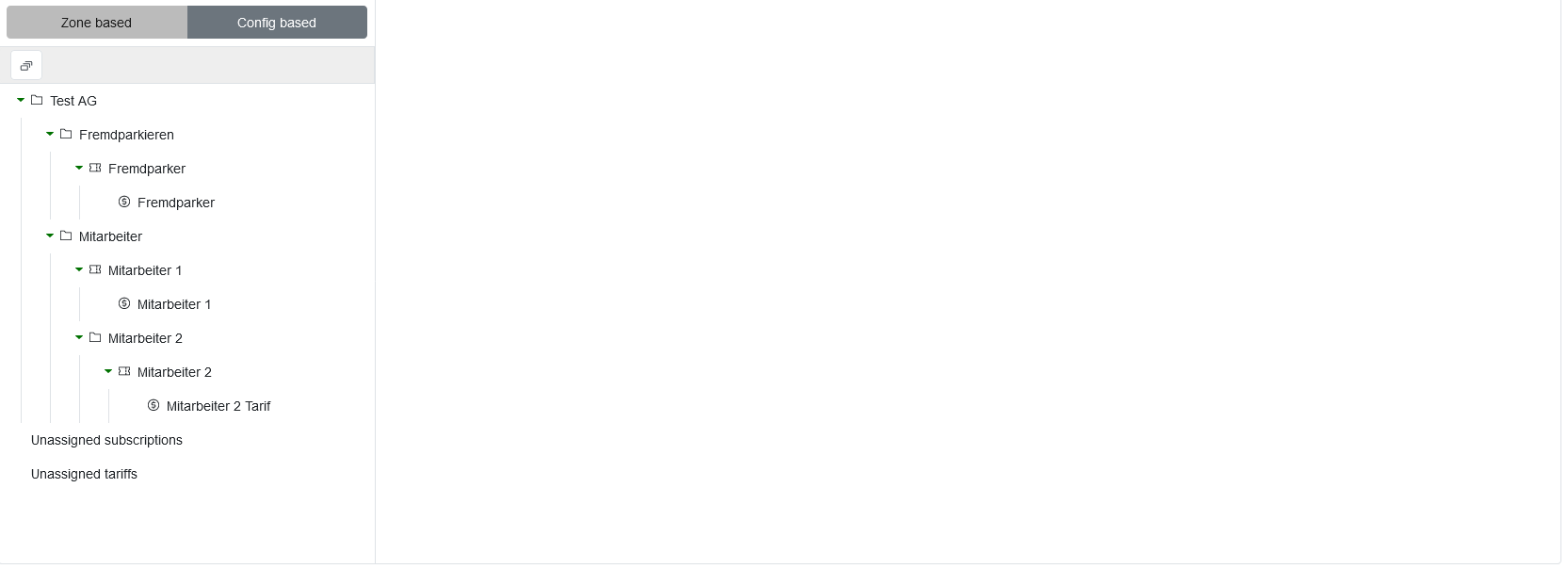
Abbildung 19: Overview configbased administration
As shown above, no zones are visible in the configuration-based administration. Here you create directories to organize subscriptions and their associated tariffs. Unassigned subscriptions and tariffs from the zone-based administration, for example, can be found in the two folders below and can be dragged into the corresponding directories. Here too, a subscription or tariff can be copied and pasted to the corresponding location using Ctrl+Drop.
Create directory:
A new directory can be added to the selected directory using the -icon.
A directory can also serve as a subscription set. If a directory is saved as a subscription set, all configurations (including other directories) that are subordinate to the directory can be assigned to a user as a set. This makes it quick and easy to assign several configurations at once. A directory that also serves as a set is marked with an “S” in the overview.

Abbildung 19: Add directory
Creating a subscription looks like this:
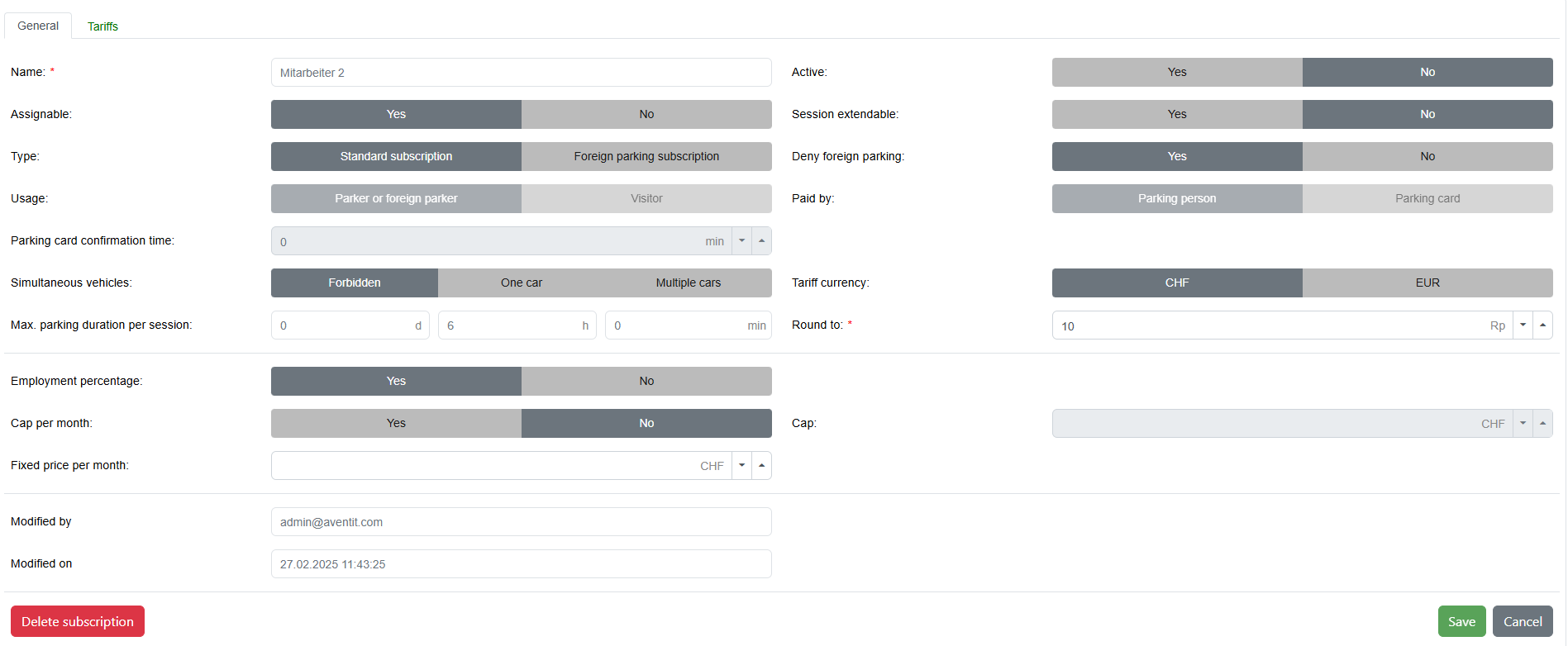
Abbildung 19: Add subscription
To be able to edit a configuration, it must first be deactivated. Only then can changes be made.
Most of the entries are self-explanatory. However, here are some terms that may require an explanation:
•Assignable: Specifically, this means: Only assignable subscriptions are assignable to Parker. If a subscription is set to "not assignable", it remains active for those parkers who have already been assigned this subscription. However, it can no longer be assigned to new parkers. In this way, a parking subscription can be phased out as a new parking subscription is to be used over time without having to set it to inactive immediately.
•Usage: Used to specify whether the parking lot is used exclusively by registered parkers (parkers and third-party parkers) or also by outsiders (visitors). In order for the “Visitor” option to be selected here, the type must be set to “External parker configuration”.
•Parking card confirmation time: The time a visitor has to obtain a parking card from the parker. If this time has expired and no parking card has yet been issued, there is no valid parking process.
•Simultaneous vehicles: This defines how simultaneous parking of a parker should be handled.
Example: A parker has been registered with 3 different control plates or UHF tags. If this parker now parks one of his cars and at the same time his wife also parks one of these 3 cars in a parking space belonging to the same customer, this rule is observed.
"Forbidden": Only one car at a time
"One car": One additional car is permitted
"Several cars": Several additional cars are permitted
•Percentage occupancy: This interacts with "Cap per month". This selection ("Cap per month") is set to "Yes" if a cap per month, i.e. a "Price cap per month", is to be set and adjusted to the employee's percentage level of employment.
Example: The cap is set to 100 francs per month. However, the employee only works for the company 60% of the time, which is why the employee only has to pay a maximum of CHF 60 per month.
•If there is no cap, you can opt for a "fixed price per month" or a "basic price per day". Both together make less sense. With a "basic price per day", a parker can use the parking space as many times as they like, but still only pay the basic price once.
An example: Either you decide on a fixed price of CHF 40 per month, for example, or you define that each parker pays CHF 10 per day, regardless of whether the parker uses the parking space once a day or once in the morning and once in the afternoon.
•Paid by: If a parking space is registered as a visitor parking space, a parking card is issued for it. The costs for this parking card can be charged either directly to the visitor (parker) or to the parker (e.g. resident) (parking card).
Move tariffs:
To assign allocated tariffs to another subscription or another zone, you can drag/push it to the desired subscription/zone. However, this is only possible if the subscription has been set to inactive. Otherwise an error message will appear. To set a subscription to inactive, the system must first check in the background whether a parking process has already taken place. If not, the deactivation process is enabled. If yes, inactivation is not possible and a new subscription with the corresponding tariff must be created. The "old" subscription can be set as no longer assignable so that it can no longer be assigned to any further parkers. The parkers who have already been assigned the subscription can continue to park with it until it is replaced by a new subscription. After a certain period of time, the old subscription will be completely deleted by Aventit when all parking processes are over and it has not been used for a long time.
To make it easier to see where a tariff is still in use, a tariff is marked everywhere it is still in use when you click on it.